About IAalerts.com
Reading the table
Live dot (next to each ticker): shows whether alerts are arriving for that ticker on the currently-selected timeframe.
Pulsing — live (≤ 3 candles old) Solid green — recent (≤ 20 candles) Amber — stale (20–100 candles) Gray — dormant (older) Dim — no data on this timeframe
A dim dot probably means no one is contributing alerts for that symbol on this timeframe yet. Add the 4 TradingView alerts (MR + Confluence, buy + sell) and everyone benefits.
Row border (left edge):
Bright 3 px — complete BUY signal (all 3 indicators confirmed, bubbles to top)
Bright 3 px — complete SELL signal
Dim 2 px — partial (2 of 3 indicators agree, worth watching)
No border — dormant / no pattern forming
Pills: each indicator cell shows the most recent BUY/SELL trigger with value and time. Signal column fires when Mean Reversion → Confluence → Trend align in the same direction, in order, within the chosen window. Trend is now auto-computed server-side from price data, so contributors only fire Mean Reversion and Confluence.
Timeframe & Window
Timeframe is the chart candle size on TradingView. Alerts sent from a 5-minute chart land here only when you're viewing "5 min". You can run alerts on multiple timeframes simultaneously — they don't mix.
Window is how many candles the three indicators are allowed to span and still count as a valid signal. Default 8. Practical values:
- 5 min: window 8 = 40 min · window 20 = 100 min
- 15 min: window 8 = 2 h · window 20 = 5 h
- 1 hour: window 8 = 8 h · window 20 = 20 h
- 4 hour: window 8 = 32 h · window 20 = ~3 days
- 12 hour: window 8 = 4 days · window 20 = 10 days
- Daily: window 8 = 8 trading days · window 20 = ~4 weeks
How to contribute alerts
Prerequisites:
- Current IADSS subscription
- TradingView Premium plan recommended (for watchlist-level alerts) — Essentials works too with per-symbol alerts. 2-factor auth must be enabled for webhooks.
- Mean Reversion and Confluence indicators added to your chart (Trend is now auto-computed server-side, no contributor alerts needed)
Step 1 — Import the shared watchlist
Download the watchlist file and import it into TradingView (Watchlist panel → ⋯ menu → Import watchlist).
The file groups symbols into named lists (IA13, Crypto, Other Tech, Miners, Uranium, Commodities, ETFs). On TradingView Premium you can apply a single indicator alert to an entire watchlist — that's how each contributor covers their slot.
Step 2 — Pick which indicator pair you'll cover
Per timeframe, four watchlist-level alerts together cover everything. Each contributor takes one indicator pair (buy + sell) for one timeframe — that's 2 alerts per person per timeframe. So we need 2 contributors per timeframe:
- Contributor A — Mean Reversion Buy + Mean Reversion Sell
- Contributor B — Confluence Buy + Confluence Sell
Trend used to be a third contributor slot. It's now auto-computed server-side from EMA crosses on Polygon (stocks) / Coinbase (crypto) bars, so no contributor coverage is needed for Trend. The dashboard's Trend column has a clickable preset toggle that cycles between three EMA pairs — Very Tight (2/9, default), Tight (4/16), and Loose (6/28) — so traders can see how each preset shapes the Signal column.
To avoid duplicates and gaps: claim your slot before setting up alerts. Reply on the IADSS Watchlist thread on the Invest Answers community forum with the pair + timeframe you want (e.g. "I'll take MR Buy/Sell on 4h"). The live coverage table below shows what's currently being received, and /contributors shows who's actively firing on each slot.
Coming soon: once login goes live, slot claiming will move on-site to /signup — the picker ranks pairs by current need so it's obvious where you'd help most. The Invest Answers forum thread will still work for discussion and feedback.
Live coverage status
Each cell shows the last time we received an alert for that indicator + direction + timeframe. Thresholds scale with the timeframe — green = covered (last alert within ~3 candle intervals), amber = stale (~30 candle intervals), dim grey = long inactive, faint grey = uncovered.
| Indicator / Direction | 5m | 15m | 1h | 4h | 12h | 1d |
|---|---|---|---|---|---|---|
| Mean Reversion BUY | ||||||
| Mean Reversion SELL | ||||||
| Confluence BUY | ||||||
| Confluence SELL |
Tip: if you see grey cells where a slot is supposed to be claimed, that contributor's alerts may have stopped firing — worth a check-in on the community forum thread.
Step 3 — Set up your watchlist alerts
1. Frequency = "Once Per Bar Close". Anything else (Once Per Minute, Once Per Bar) fires repeatedly within a single bar and floods the server with thousands of alerts per day. This is the #1 cause of contributor accounts getting flagged.
2. Extended Trading Hours: ON for every chart
(crypto, commodities, and especially US stocks). On the chart,
go to Chart Settings → Symbol → Extended Trading Hours: ON.
Without this, US stock charts default to Regular Trading Hours,
which aligns 1h/4h bar timestamps to :30 past the
hour (NYSE open is 09:30 ET = 14:30 UTC). The dashboard's
auto-trend pipeline uses :00-aligned bars, so
mixing modes causes the same bar to land twice with different
timestamps — cluttering the indicator columns and breaking
clean signal alignment. ETH on everything keeps every bar
timestamp on :00 across asset classes.
On TradingView Premium, you can apply a single alert to an entire watchlist — the condition evaluates against every symbol in that watchlist. The fastest workflow is to start from the indicator's ⋯ menu (it pre-fills the Condition field so you skip a step). Do this twice — once for your Buy alert, once for your Sell alert.
1. Open the indicator's ⋯ menu, choose "Add alert on…".
On a chart with the IADSS indicators loaded (Mean Reversion or Confluence), hover the indicator's name in the chart legend → click the ⋯ (More) button that appears → pick "Add alert on IA-Mean-Reversion" (or the corresponding Confluence option). The Create Alert dialog opens with the Condition already pointed at your indicator.
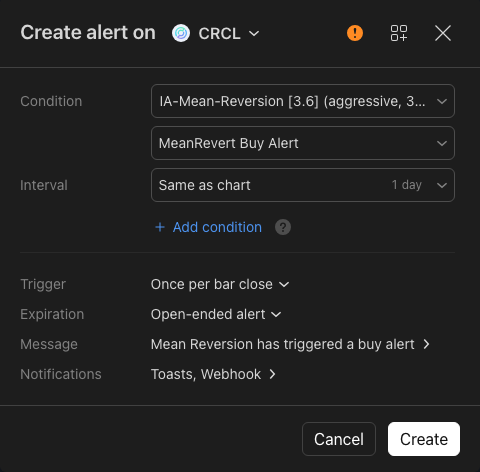
2. Confirm the dialog — Condition + Trigger.
The dialog should look like the one below. The Condition is pre-filled with the indicator name; in the second dropdown, pick the matching signal (e.g. MeanRevert Buy Alert). Crucially, check that Trigger is set to "Once per bar close" — anything else (Once Per Minute, Once Per Bar) re-fires the same condition repeatedly within a single bar and floods the server.
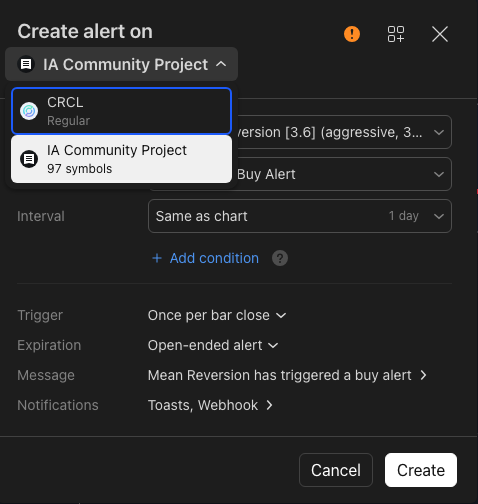
3. Switch the scope from the single symbol to your watchlist.
At the top of the dialog, click the ˅ dropdown next to the symbol name. Pick your imported IADSS watchlist (e.g. "IA Community Project — 97 symbols"). Without this step, the alert only fires for the single chart symbol, not the whole watchlist.
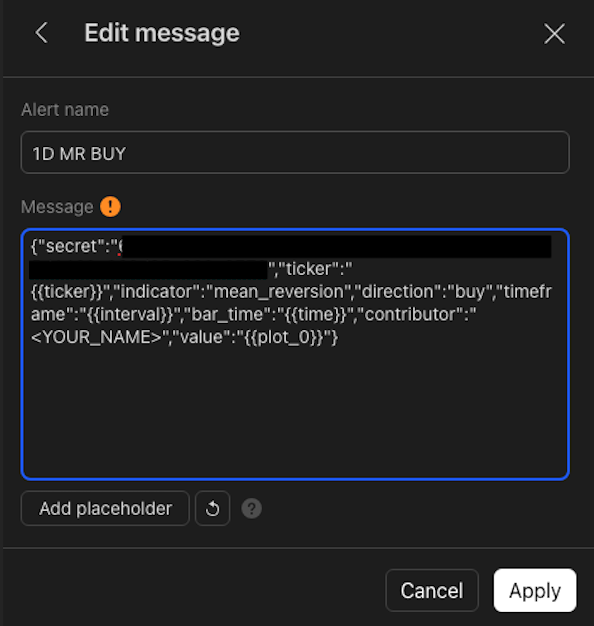
4. Edit the Message — paste your JSON template.
Click into the Message field at the bottom of the dialog. Clear the default placeholder text and paste the matching JSON template from the "Alert message bodies" section further down this page. The secret + your handle are already baked in for logged-in contributors.
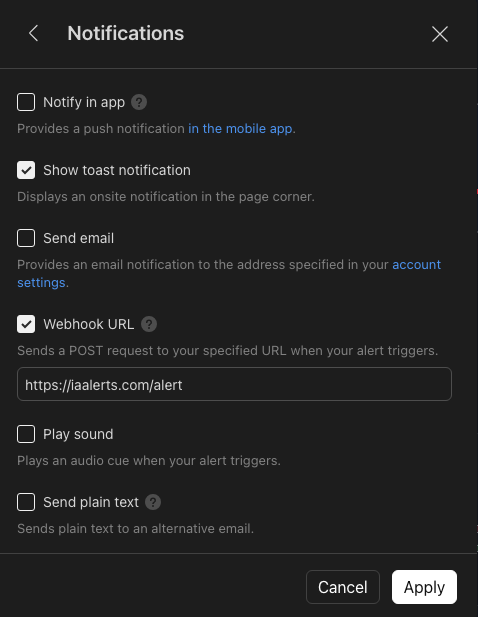
5. Tick Webhook URL under Notifications.
Open the Notifications panel from the dialog. Tick Webhook URL and paste the URL shown below (also visible in the next section). Leave "Show toast notification" enabled if you want an in-browser confirmation when alerts fire.
If the Webhook URL checkbox isn't visible: TradingView requires 2-factor authentication on your account before exposing it. Enable 2FA in your TV account settings, then reopen the dialog.
6. Click Create. The alert fires for every symbol in the watchlist on bar close.
Faster test (optional): create a temporary second alert with the same Webhook URL + JSON Message body but on a 5-minute chart instead of 1D. The 5m bar closes every 5 minutes so you get a fire within ~10 min. Once you see the row at /alerts, delete the temporary alert so it doesn't keep firing.
Note: this is the standard TradingView Premium "Watchlist alert" feature — not Pine Screener. The IADSS indicator stays exactly as you have it; you're just pointing one alert at many symbols. TradingView Premium caps watchlist-level alerts at 2 simultaneously active, so each contributor covers one indicator pair (MR Buy + MR Sell, or CF Buy + CF Sell) on one timeframe. Covering multiple timeframes from a single account isn't possible at the Premium tier — that's by TradingView design, not ours.
Webhook URL
In TradingView's alert dialog → Notifications tab → tick Webhook URL → paste this URL:
https://iaalerts.com/alert
Your contributor name
Pick a short handle (e.g. old_timer, supaswim) so your alerts show up under your name in the Recent alerts feed instead of "(unidentified)". The handle gets baked into your message bodies below — saved per-browser, no need to re-type.
Or create an account to bake your handle in server-side and claim your coverage slots.
Alert message bodies
Mean Reversion — BUY (value required)
{"secret":"<LOG IN TO REVEAL>","ticker":"{{ticker}}","indicator":"mean_reversion","direction":"buy","timeframe":"{{interval}}","bar_time":"{{time}}","contributor":"__CONTRIBUTOR__","value":"{{plot_0}}"}
Mean Reversion — SELL (value required)
{"secret":"<LOG IN TO REVEAL>","ticker":"{{ticker}}","indicator":"mean_reversion","direction":"sell","timeframe":"{{interval}}","bar_time":"{{time}}","contributor":"__CONTRIBUTOR__","value":"{{plot_0}}"}
Confluence — BUY
{"secret":"<LOG IN TO REVEAL>","ticker":"{{ticker}}","indicator":"confluence","direction":"buy","timeframe":"{{interval}}","bar_time":"{{time}}","contributor":"__CONTRIBUTOR__"}
Confluence — SELL
{"secret":"<LOG IN TO REVEAL>","ticker":"{{ticker}}","indicator":"confluence","direction":"sell","timeframe":"{{interval}}","bar_time":"{{time}}","contributor":"__CONTRIBUTOR__"}
{{ticker}}, {{interval}}, {{time}}, {{plot_0}} are TradingView placeholders — the platform fills them in automatically. Leave them as written. For Mean Reversion, if {{plot_0}} doesn't return the oscillator score, try {{plot_1}}, {{plot_2}}, etc.
Efficiency tip: in TradingView's Alerts panel, right-click an existing alert → Clone → change symbol and condition. Much faster than starting from scratch.
Troubleshooting
The four most common failures and how to fix them. If you're stuck on something not here, message admin (see below).
| Symptom | Likely cause | Fix |
|---|---|---|
| I set up the alert but nothing arrives at /alerts |
One of:
|
Use the first-fire smoke test (Step 3 callout above) to confirm one alert works before building the rest. Check the TV Alerts panel — your alert should show "active" not "expired" or "stopped". |
| I'm getting flooded — hundreds or thousands of alerts per day | Frequency is "Once Per Minute" or "Once Per Bar" instead of "Once Per Bar Close" — the alert re-fires within a single bar while the condition stays true. | In each alert: edit → Frequency → Once Per Bar Close. Save. The next bar close is your first clean fire. (If a flood already happened, admin can clean it up via the Dedupe button on /alerts — keeps the legitimate first fire per bar, removes the dupes.) |
plot_0 returns nothing or wrong value in the message body |
IADSS indicator plot indices vary across versions — your plot_0 might be a different series than the one we want. |
In the message body, try |
| Server rejects my alert (400 error in TV's alert log) | JSON syntax broken — usually because the message was pasted from a rich-text editor that converted straight quotes " into curly quotes " ". |
Re-copy the message body straight from this page (the Copy button preserves straight quotes). Paste directly into TradingView's Message field. If you've already lost alerts to curly quotes, ask admin to run /admin/recover-webhooks — it normalises and re-ingests historical failures. |
Other patterns worth knowing: the live coverage table above shows what's currently arriving — if your slot stays grey after you save the alert, something on the TV side isn't firing yet. Check the alert is enabled and the Frequency is set correctly.